Managing Workspaces
You can manage workspace settings by doing the following:
Log in to BearQ.
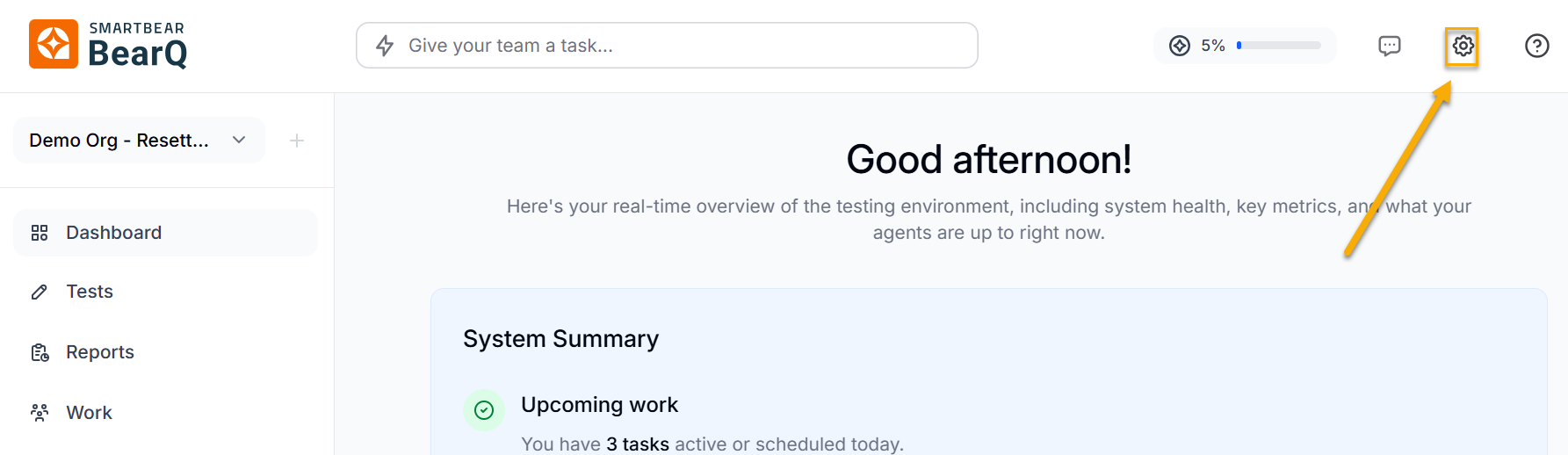
Click Settings.
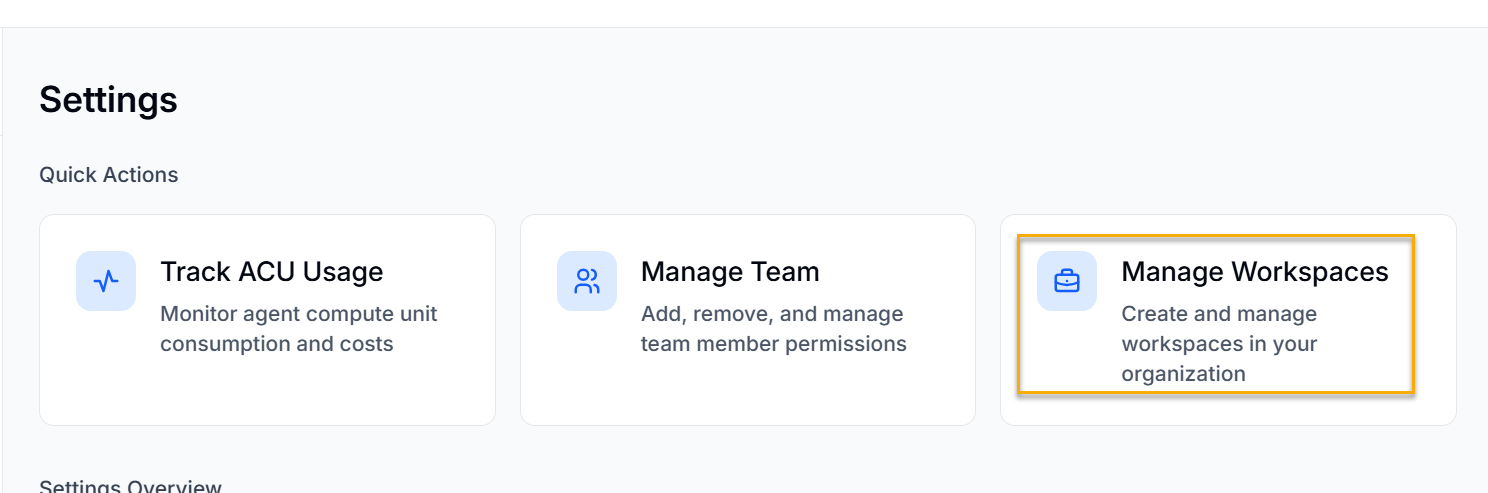
Click Manage Workspaces.
Click Create Workspace to create a new workspace.
Enter the name and select whether you want to enable Auto-join. This will allow the user with the selected domain set as the Auto-join domain for the workspace to join the workspace directly upon logging in.
Click Save Changes.
Your changes will be saved for the workspace.
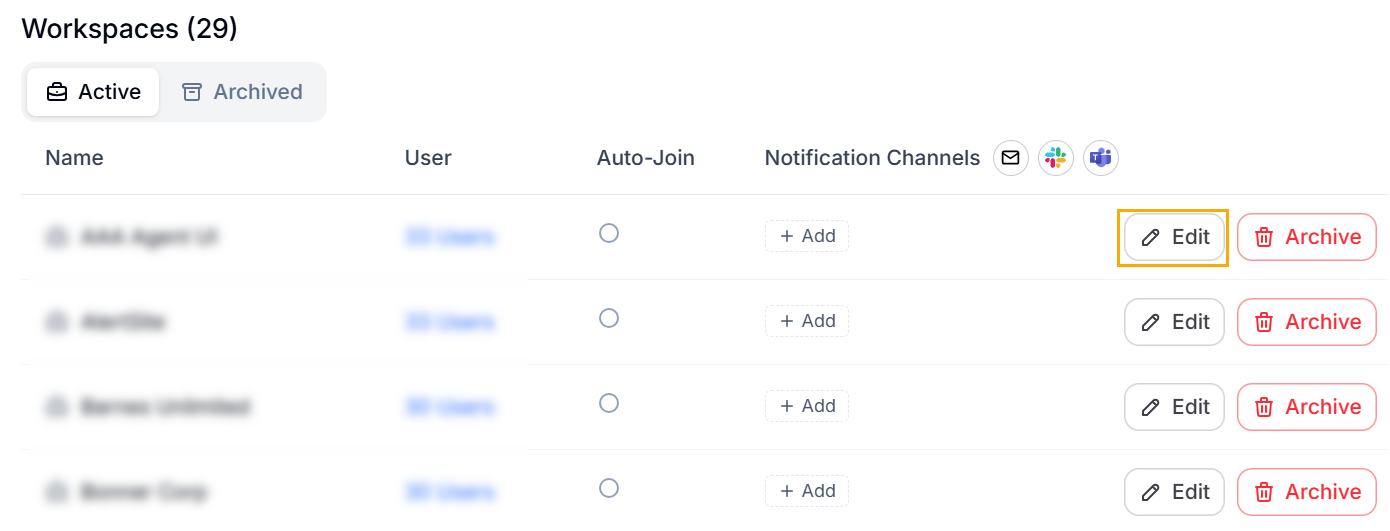
Similarly, you can edit the workspace. Click Edit under workspaces. You can also archive a workspace by clicking Archive.
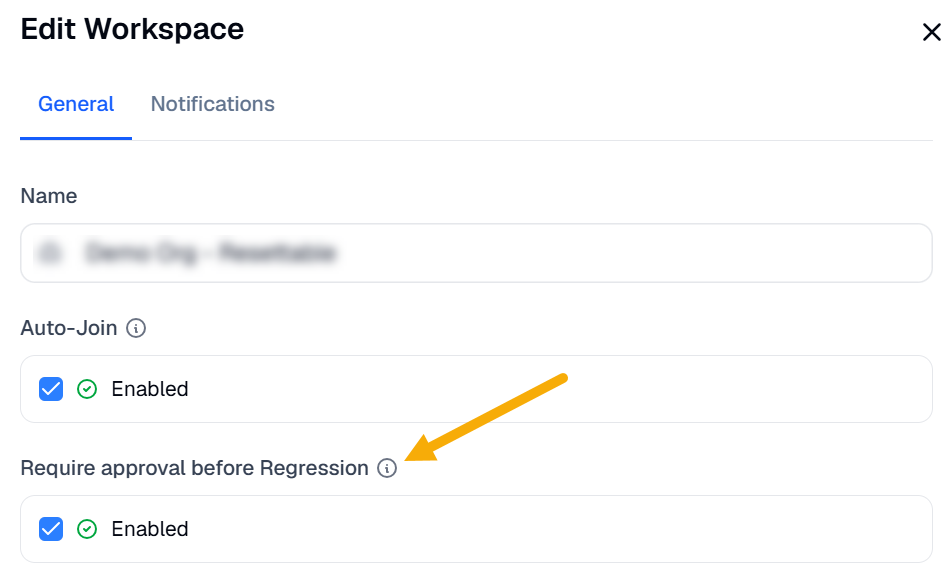
Enter the title and select whether you want to enable Auto-join.
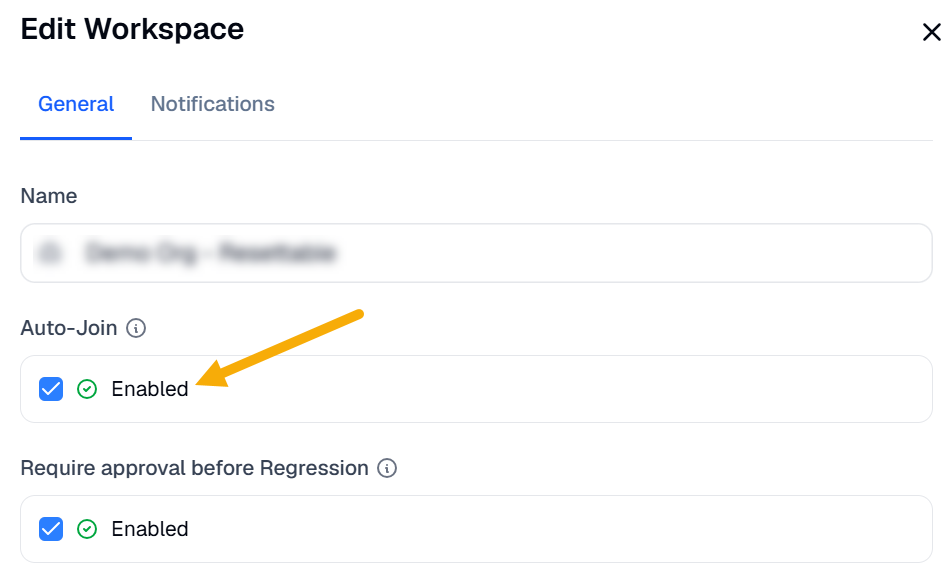
You can also turn on Require approval before Regression. When this setting is on, tests that the QA Lead passes require your approval before they are included in the regression tests.
Sending Updates to Slack or Teams Channels
Log in to BearQ.
Click Settings.
Click Manage Workspace.
Click Edit under workspaces.
Go to Notifications. You can enter the link to the custom Slack or Teams channels where all the alerts will be updated.
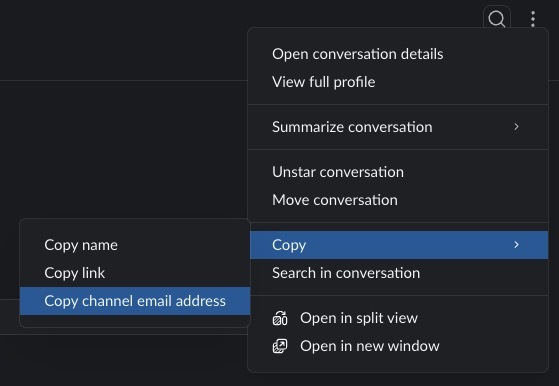
To get the custom Slack channel email address, Right-click on the channel name and click copy channel email address.
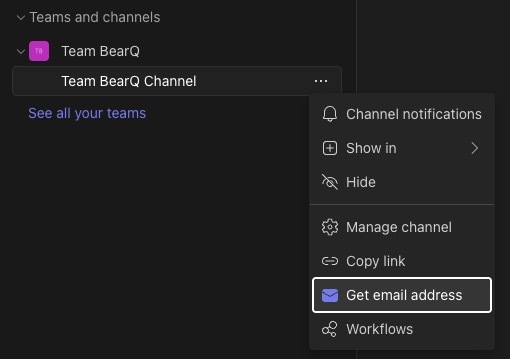
To get the Teams group email address, Right-click on the name of the Teams group and click Get email address.
Click Save changes.
Your changes will be saved.