Getting Started with BearQ
Note
To access BearQ, contact the sales team. They will create an organization for you. Once this setup is complete, you can sign in and start using BearQ.
To get started with BearQ, log in to the BearQ application and connect it to your application.
Logging in to BearQ
To log in to the BearQ application:
Open the BearQ application.
Result: The login window opens:
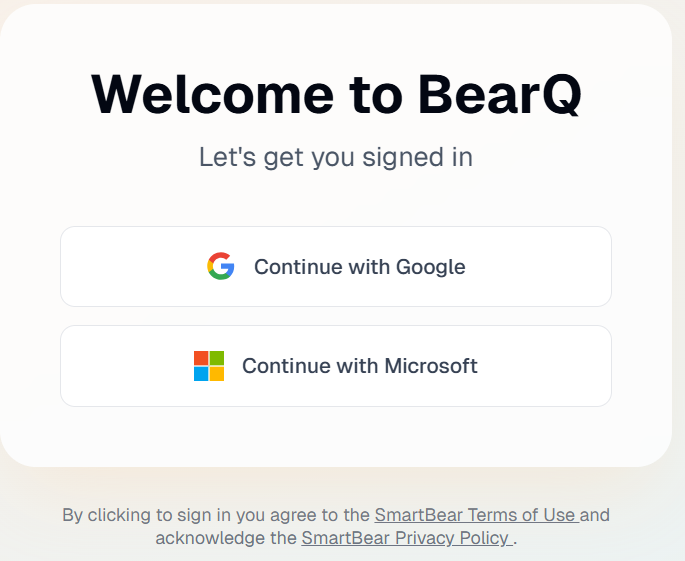
Use the business account from either Google or Microsoft to log in.
Once you log in, the BearQ homepage opens.
Onboarding Your Application
To onboard your application to BearQ:
Log in to BearQ.
Result: The onboarding window opens:
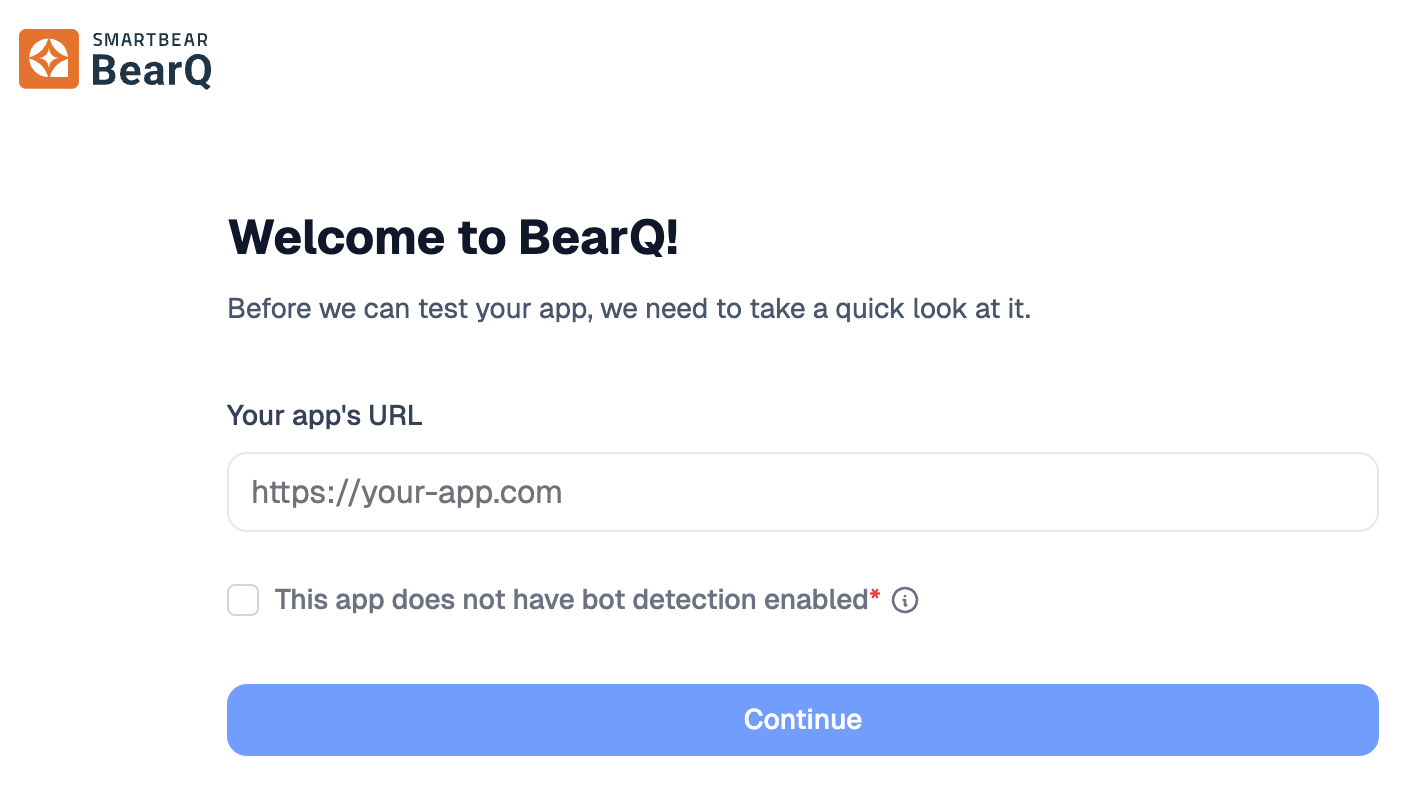
Enter Your app's URL.
Answer whether your application blocks bots:
Select No, my app does not block bots if automated access is allowed.
Select Yes, bots are blocked by CAPTCHA or other protective measures if your application uses bot protection.
Click Continue.
Choose how BearQ signs in to your application:
No login. If your application does not require a login, select the no-login option.
Username and password. Enter the Username and Password that BearQ uses to sign in.
Email MFA. If your application requires an emailed verification code, set up email multi-factor authentication (MFA).
Click Access the app.
Result: BearQ is set up with your application.
Set up Email MFA during onboarding
If your application's login requires an emailed verification code, BearQ signs in using an email account at your workspace's email subdomain. Each workspace has a unique email subdomain, in the form @<workspace>.<org>.<bearq.smartbear.com>. BearQ receives verification emails at this subdomain and reads the code to complete the login.
BearQ needs a working login before it can access your application, so you set up the email user first:
During onboarding, indicate that your application requires email MFA.
In your application, create a login user whose email address uses your workspace's BearQ email subdomain. The address must match your workspace's email domain.
Read any verification message for that user in the BearQ workspace inbox.
Confirm that the user can sign in to your application.
Back in BearQ, select the Email MFA Recipient. This is the address that BearQ watches for verification codes. If only one address is available, BearQ selects it for you.
Continue onboarding.
Connecting BearQ to Your Application
To connect BearQ to your application:
Log in to the BearQ application with administrator credentials.
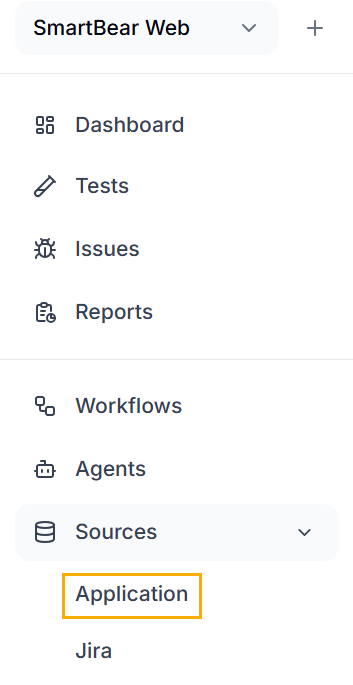
Once you are on the homepage, click Application under Sources.
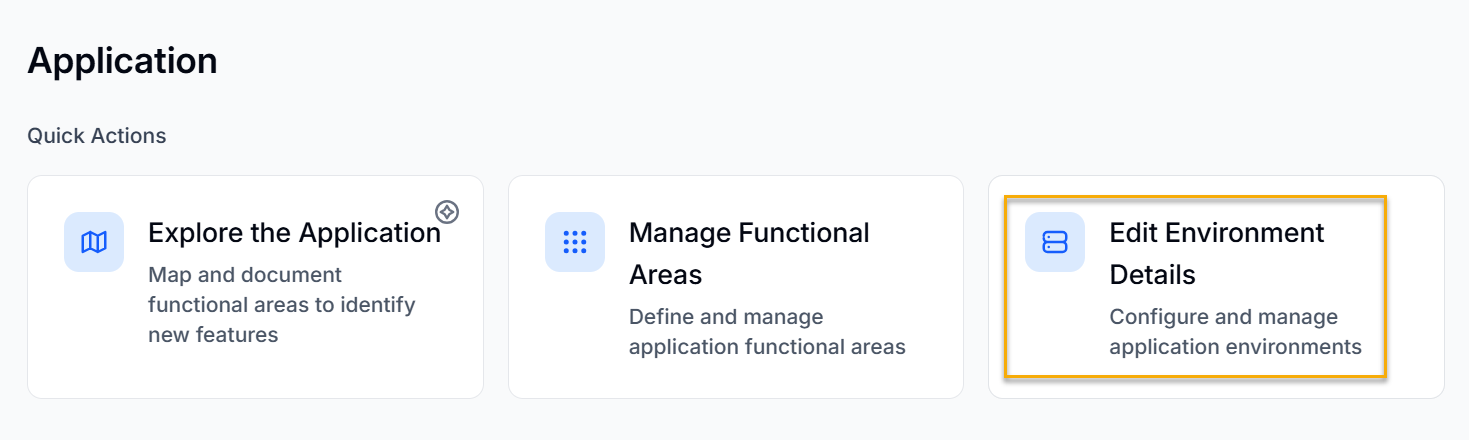
You will be navigated to the Application page. Under Quick actions, click Edit Environment Details.
You can either add another environment by selecting Add environment or edit an existing environment configuration by selecting Edit
 .
.You can add the name and URL, and also select the environment as the default by selecting Set as a default environment.
Select Authentication. Choose the login type. Select Login requires Email verification for Email MFA.
Select Advanced. Add other details such as Cookies, Local Storage, and Extra HTTP Headers.
After making the required changes, click Save.
Your application is now connected to BearQ.