Issues
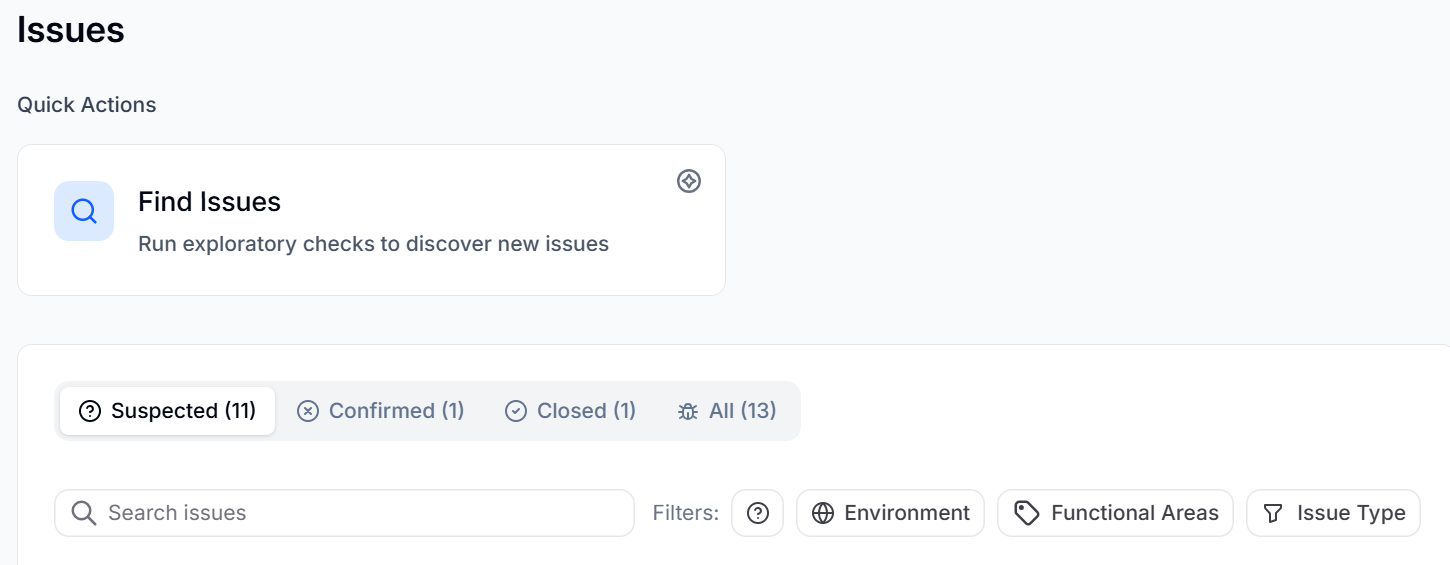
BearQ automatically detects actionable issues in your application at all times, not just during dedicated scans. Whether BearQ is exploring your application, running regression tests, or running a Find Issues task, it continuously watches for problems and surfaces them on the Issues page.
Unlike regression tests, which identify problems that appear after a previously passing test fails, issues cover a broader range of problems, including bugs that may have existed since the application was first tested. BearQ also detects poor UX patterns, accessibility violations, performance problems, and data inconsistencies.
When BearQ detects a problem, it organizes the finding on the Issues page with full metadata so you can review, investigate, and act on it. BearQ does not create duplicate issues. If multiple test runs encounter the same problem, BearQ records it as a single issue.
Issue types
BearQ categorizes issues into the following types:
Bug: Unexpected behavior or broken functionality.
Accessibility: Violations of accessibility standards.
UX/UI: Usability problems or poor interaction patterns.
Performance: Slowness or resource inefficiency.
Data: Data validation errors or inconsistencies.
Regression: A behavior that broke after previously working correctly.
Issue lifecycle
Each issue moves through the following states:
Suspected: BearQ has detected a potential problem but has not yet verified it.
Confirmed: BearQ has verified the issue. A confirmed issue is a reliable finding that your team can act on. A suspected issue becomes confirmed after it is verified.
Closed: The issue has been resolved or dismissed. This happens when it is closed manually or when a linked test passes. You can close an issue in the following ways:
Resolve: The problem has been fixed.
Ignore: The behavior is known or intentional and does not require action.
Note
Verify the exact status and action labels against the live UI before publishing this section.
Act on an issue
When you want to address an issue, BearQ gives you the following options.
Link to a ticket or create a new one
You can link an issue to an existing ticket in your issue tracker or create a new ticket directly from the issue details page. Creating a ticket requires a connected external agent such as Jira or Linear. To connect an external agent, go to Settings and select Agents.
Link to a test or create a new one
You can link an issue to an existing test case or create a new test directly from the issue. Creating a test from an issue gives BearQ the reproduction steps it needs to author a reliable regression test for that specific problem.