Connecting and Removing an External Agent
BearQ includes a dedicated Agents section in the application sidebar. The Agents page allows you to perform the following tasks:
View connected agents
Add new agents
Remove agents
Configure available tools
Manage authentication settings
The page also displays the built-in BearQ agents:
QA Lead Agent
Explorer Agent
Tester Agent
Note
Built-in agents are currently not configurable.
To connect an external agent, perform the following steps:
Log in to BearQ.
Click Agents.
Click Connect an Agent, under Quick actions.
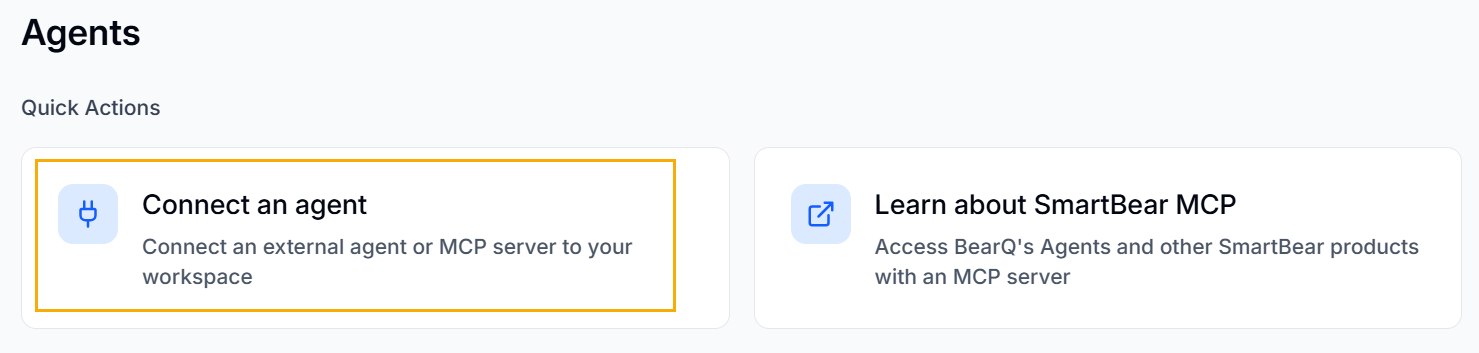
Enter the Server name, Server URL, and select the required Authorization type.
Click Connect and Continue.
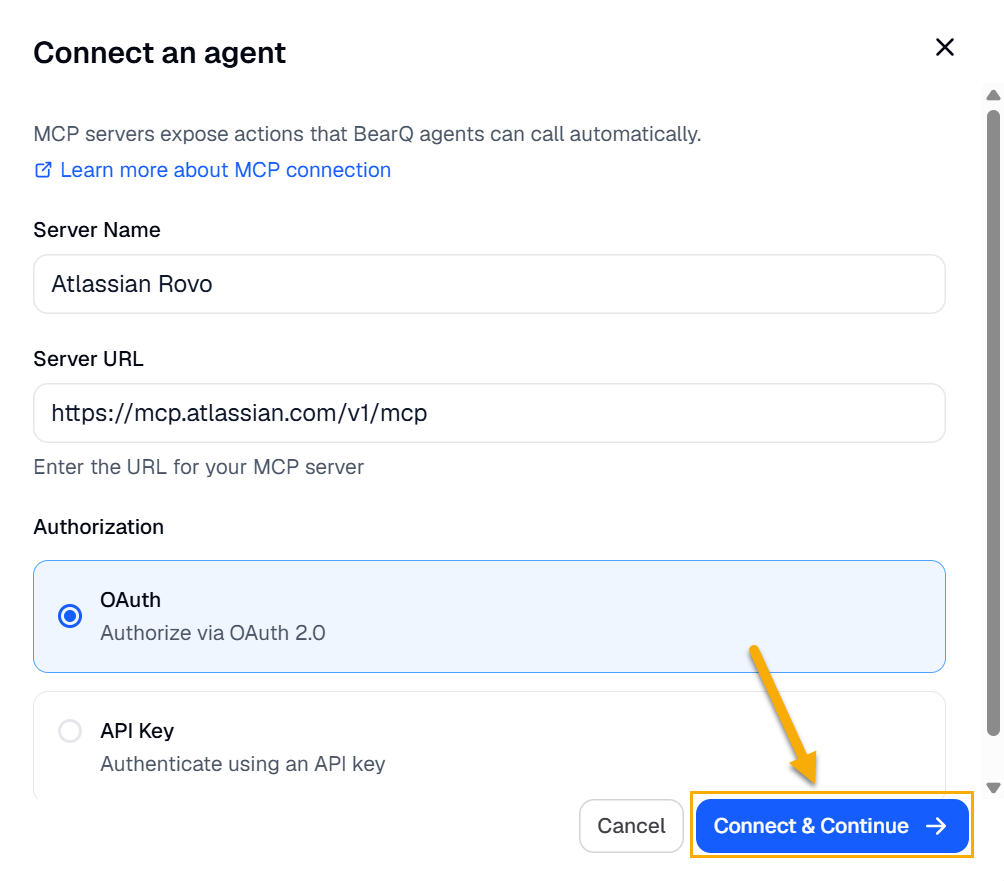
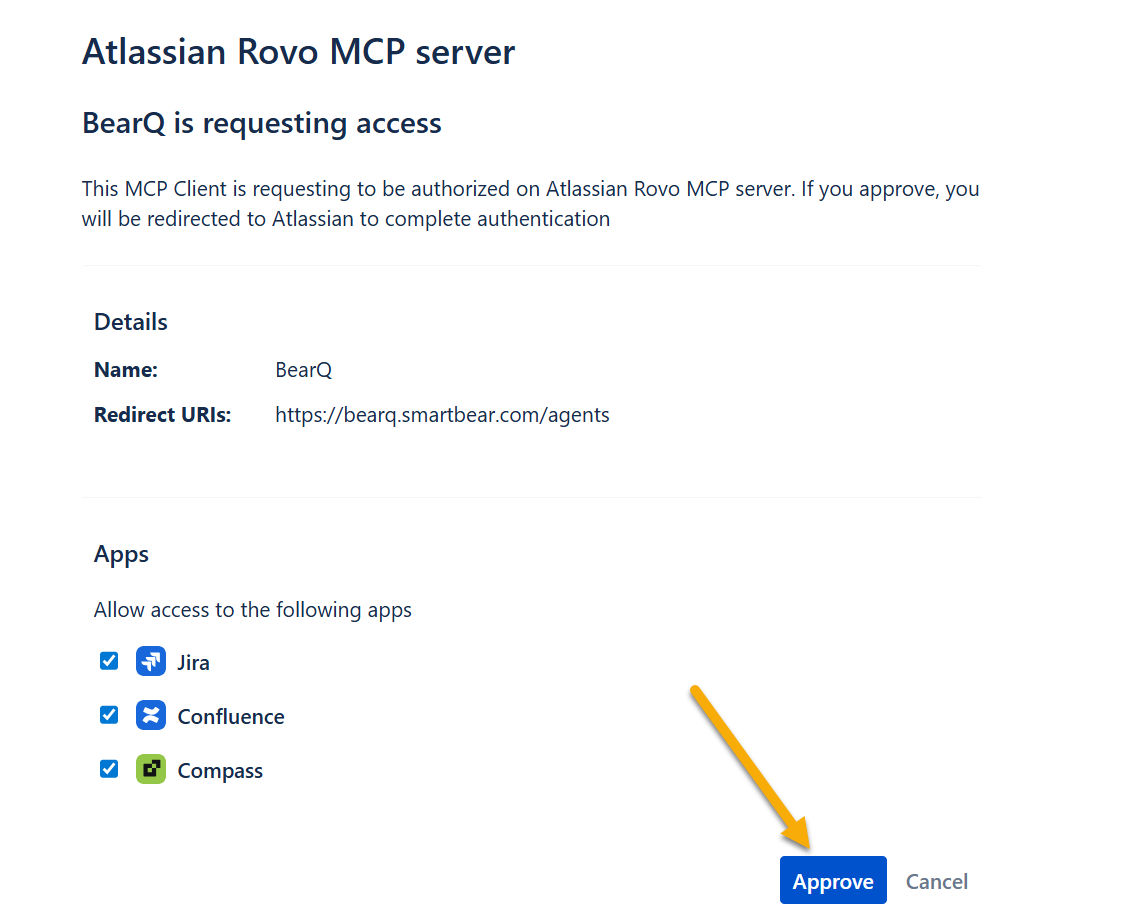
After allowing access to the relevant applications, click Approve.
Select the account you want to connect BearQ to and click Accept.
Click Save Configuration. All the available tools in the agent appear in the list.
Result: Your External Agent is now connected to BearQ.
Authentication Support
To connect an external agent, BearQ requires the following:
MCP server URL
Authentication details
Different MCP servers support different authentication methods. BearQ currently supports the following:
Header token authentication
OAuth client credentials
Note
Some MCP implementations rely on browser-based OAuth authorization flows. Since BearQoperates as a remote service, authentication support depends on methods compatible with remote connections. To learn more, read SmartBear MCP server.
Removing an External Agent
To remove any connected external agent, perform the following steps:
Click the settings button under External Agents.
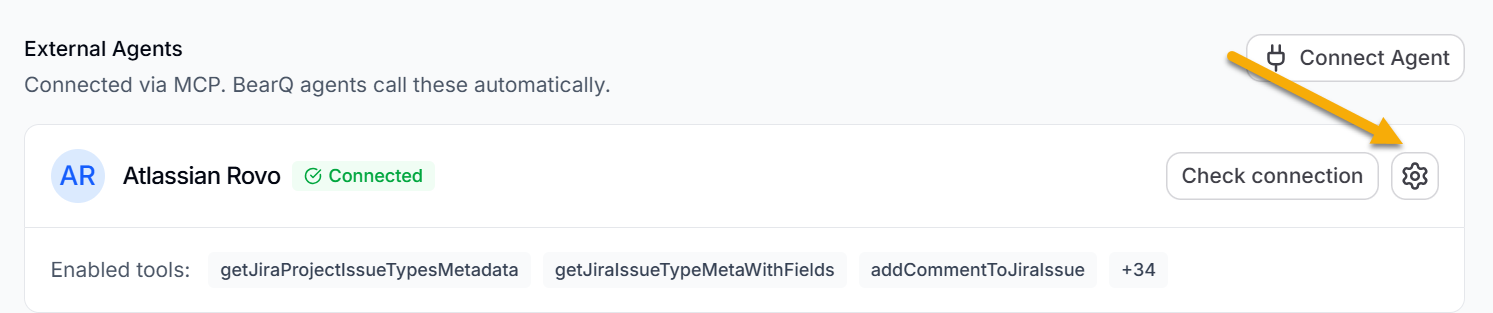
Click Remove, and then select Remove in the dialog box.
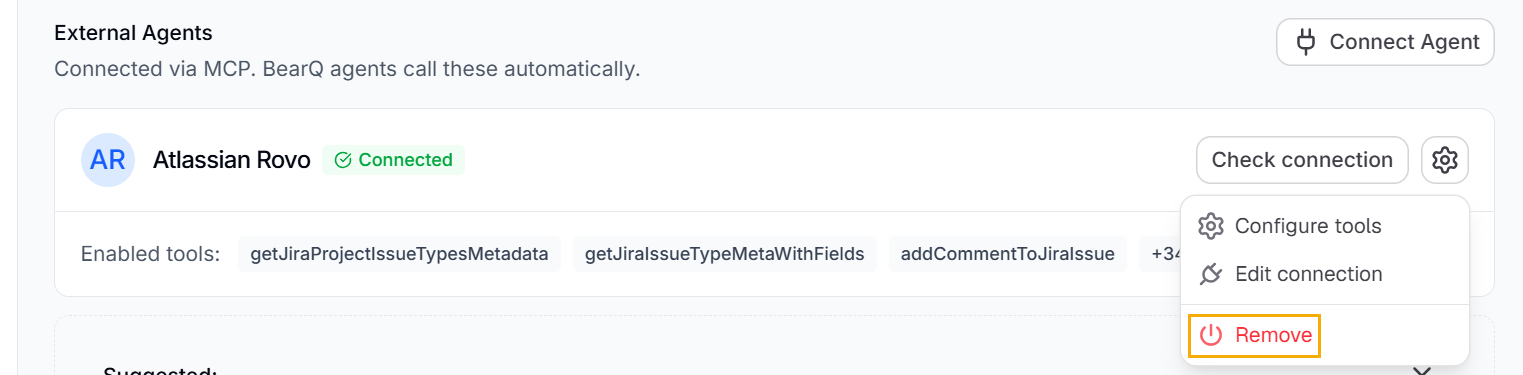
Result: Your external agent connection is removed.